Home/Blog/Speed up your Wi-Fi

Guides · Home network

How to speed up your Wi-Fi and the dusty port that cost us 97% of our speed

We pay for 1 Gbps and were getting 30 Mbps. We tried new Wi-Fi settings and a booster before finding the real culprit: a dusty, loose Ethernet port on the router. Here is how to find where your speed is going, and the two minute fix worth trying first.

Speed up your Wi-Fi: check the port before you buy a booster

Paying for 1 Gbps, getting 30 Mbps

We pay for a 1 Gbps full fibre line. One evening, every speed test came back at around 30 Mbps. Video calls turned blurry, downloads crawled, and the whole house felt slow. That is roughly 97% of the speed we pay for, gone.

We did what most people do and blamed the Wi-Fi. We moved the router, switched the Wi-Fi band, changed channels and tried a Wi-Fi booster. Each of those helped a little. None of them fixed it.

The fix took two minutes and cost nothing. We unplugged the Ethernet cable that runs into the router, cleared the dust out of the port, plugged it back in firmly and restarted the router. The speed came straight back. Here is why that works, and how to find out where your own speed is going.

Step one: find out where the speed is lost

A slow connection has three suspects: the line coming into your home, the cables and ports between your provider's box and your router, and the Wi-Fi between your router and your device. Test them one at a time rather than changing everything at once.

Plug a laptop straight into the router with an Ethernet cable and run a speed test. You can use our free speed test. If the wired result is fast, the problem is your Wi-Fi. If the wired result is slow too, the Wi-Fi is innocent and the problem sits before it. Turn off any VPN while you test, so you are measuring your line and nothing else.

Then check the link speed, which is the speed your devices agreed on when they connected. On Windows, open Settings, then Network and internet, then Ethernet, and look for Link speed. Most routers show the same thing for their internet or WAN port on the admin page, for example 1000 Mbps full duplex. A gigabit plan needs 1000. If you see 100, you have found your problem.

Why a dusty port can cut your speed to a crawl

An Ethernet cable carries eight small wires, arranged in four pairs. Gigabit Ethernet uses all four pairs. The older 100 Mbps standard only needs two. When one contact in a port is dusty, tarnished or not quite touching, the two devices cannot hold a clean gigabit link. They either fall back to 100 Mbps, or keep the gigabit link while losing data and sending it again. Either way, your 1 Gbps plan behaves like a much slower one, and nothing on screen tells you why.

Dust, lint and pet hair collect in ports that sit near the floor or face upward. A cable that has been knocked, or a plug whose clip has snapped so it sits slightly loose, has the same effect. That is why the fix can feel like magic. Nothing was broken. It just was not touching properly.
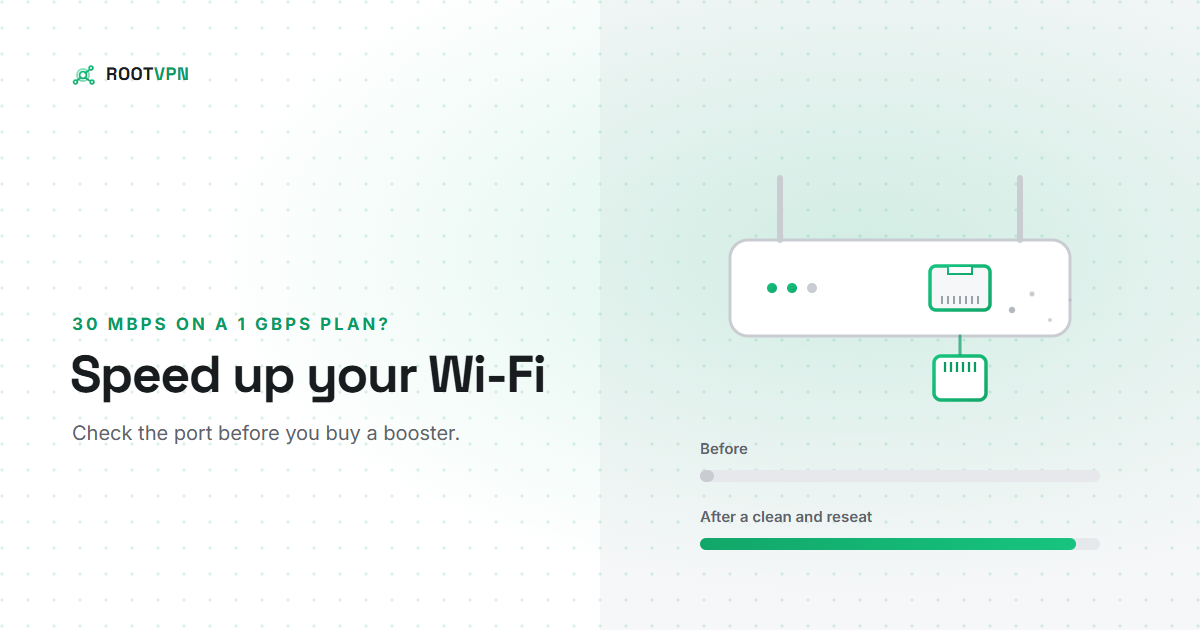
The two minute fix: clean and reseat the router's Ethernet

  1. Turn off the router and your provider's box (the fibre box or modem the cable runs from) at the wall.
  2. Unplug the Ethernet cable at both ends. It is usually the one going into the router's internet or WAN port, which is often a different colour from the others.
  3. Look inside the port and at the plug. Clear out dust with a few short bursts of compressed air, holding the can upright. A gentle, dry puff works in a pinch. Never poke inside with anything metal.
  4. Check the plug's clip is intact and none of the tiny contacts look bent. Push the plug back in until it clicks and will not pull out.
  5. Turn the provider's box on first and wait a minute, then turn on the router. Give it two minutes to start fully.
  6. Run the wired speed test again and check the link speed now says 1000 Mbps. If it still shows 100 Mbps, swap the cable for one marked Cat5e or Cat6. Plain Cat5 cables cannot carry gigabit reliably.

Not sure your connection is healthy now? Run our free speed test on a cable, then on Wi-Fi, and compare.

If the cable is fine, speed up the Wi-Fi itself

Use 5 GHz or 6 GHz, not 2.4 GHz. The 2.4 GHz band reaches further through walls, but it is slower and crowded by every neighbour's router. Most routers broadcast both. Giving each band its own name lets your devices pick the fast one when they are close enough.

Give the router a better spot. Central, high and in the open works best. Inside a cupboard, behind the TV or next to a microwave or fish tank works worst, because metal, water and walls soak up the signal.

Try a quieter channel. Routers usually choose a channel automatically. If your speed dips every evening when the neighbours come online, ask the router to rescan or pick a different channel by hand.

Be careful with boosters. A basic range extender repeats the signal on the same radio, which can roughly halve the speed it passes on. Mesh systems do better, and mesh units joined by an Ethernet cable do best. A booster helped us a little, but it was treating the symptom, not the cause.

Restart and update. A restart clears a router that has been running for months, and firmware updates often fix performance bugs. Check the admin page or your provider's app for updates.

Check the device, not just the router. An older phone or laptop may top out well below your plan, whatever the router does. Test with a recent device before deciding the router is at fault.

What speed should you actually expect?

On a 1 Gbps plan, a wired connection usually tests somewhere around 900 to 940 Mbps, because some capacity is used by the protocols that carry your data. Wi-Fi almost always delivers less, often a few hundred Mbps, depending on distance, walls and the device. If your wired result is close to your plan and your Wi-Fi is simply lower, things are working as they should. If your wired result is far below your plan, keep digging, and call your provider if the cable and ports check out.

Does a VPN slow your internet down?

A little, and an honest VPN should say so. Encrypting your traffic and sending it through a server adds some overhead and some distance. With WireGuard, the protocol ROOT VPN uses by default, the overhead is small, and choosing a nearby location keeps the extra distance short. If your speed drops sharply with the VPN on, try the Fastest location, then test with the VPN off to compare against your baseline. A VPN cannot fix a dusty port or a weak signal, so sort those out first.

Faster Wi-Fi: common questions

Why am I only getting around 100 Mbps on a gigabit plan?
That number is a strong clue. It usually means the Ethernet link between your provider's box, your router or your computer has fallen back to the older 100 Mbps standard. Clean and reseat the plugs, check the cable says Cat5e or Cat6, and make sure the port on your computer supports gigabit. Older laptops and USB adapters sometimes top out at 100 Mbps.
Why is my Wi-Fi fast next to the router but slow upstairs?
Distance, walls and floors weaken the signal, and the fast 5 GHz and 6 GHz bands fade quicker than 2.4 GHz. Move the router somewhere central and high, or use a mesh system. Mesh units joined by an Ethernet cable give the best results.
Is it safe to clean my router's ports?
Yes, if you turn everything off at the wall first. Compressed air in short bursts, with the can held upright, is the best tool. A gentle, dry puff works in a pinch. Never use anything metal or any liquid inside a port.
Will a VPN make my Wi-Fi faster?
Usually not. A VPN adds a small amount of overhead, because your traffic is encrypted and travels via a server. In rare cases where a provider slows down one particular kind of traffic, a VPN can help, but it cannot fix a dusty port, a weak signal or a slow plan, so fix those first.

More from the ROOT VPN blog

Read more about what ROOT can do, or browse every post.

Full speed, and private too.

ROOT VPN runs on WireGuard, keeps no activity logs, and is free to start. Get your speed back, then keep it yours.

Get ROOT VPN, free